
Board Module
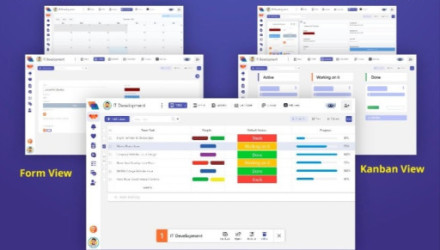
In the board module, you will get all the functionality of the board, including its front and backend connectivity, UI, flowchart, and complete technical specifications. I. Board Creation, Edit, and Delete 2. Board Types 3. Board Views 4. Board Features 5. Adding Row in Board 6. Adding Column in Board 7. Invite Members or Share Board
 How to Create, Edit & Delete Board
Board Module: The board is your first organization level of the Hoicko hierarchy that you encounter in the workspace.Mostly everything in Hoicko is customizable, and some settings are implemented at the board level. Other features such as group by, filter,...
How to Add Column in Board
Column Functionality How to add a column on a board? Adding columns in Hoicko.ai helps you customize your board according to your workflow requirements. You can add different types of columns such as attachments, attendance, status, people, formulas, timelines, and...
How to Add Row in Board
Row Functionality How to add rows on Board? First, you have to open your board in which you want to add a new row. Then, on the left lower side there is an option to +add an activity. Then you...
How to Invite Members or Share Board
How to invite a member to a board? Invite any member or team or share a board with a team member or team in hoicko.ai; it is just similar to sharing a workspace with any person. Go to the board...
How to use Board Feature
Board Feature: A lot of items in a group can get a little bit intimidating. You can use the Hoicko board features to find what you're seeking more quickly!Grouping, sorting, filtering, column visibility, and more are the way to get...
How to use Board Types
Board Types: After creating a workspace, you have to create a board, the window appear and there is a option below the Board Name to choose the type of board you require. There are two types of Board: 1. Main...
How to use Board Views
Board Views: Hoicko has different way to represent the boards; we all like to see data in colorful and different view, we came up with awesome Boards View. In order to examine and report on your board data, you can...
How to add my logo and branding to my hoicko.ai account
If you are the account's administrator, you can upload your team's logo to further personalize your account on hoicko.ai. To find out how just follow these easy instructions! Step 1 Click on your profile picture in the bottom left corner...
Page Navigation
- Sign Up and Login
- Workspace
- Invite Member on Hoicko
- Board Module
- Board Form
- Workflow
- Automation
- Dashboard
- The basics of columns
-
The Fundamentals of Column
- Introducing Columns in Hoicko.ai:
- Email Column in Hoicko.ai for smooth working
- Attachment Column in Hoicko.ai for easy collaboration
- Track your information with Hoicko's Website column.
- Get connected: Mobile Number Column in Hoicko.ai
- Comments in Hoicko Board
- Optimizing Budgets with Money Column
- Deadline Reminder- Date column in Hoicko board
- Time Column in Hoicko
- Streamlining Feedback with the Rating column in Hoicko.
- Enhance Clarity with "Text" Column on Hoicko board
- Mastering the Label column in Hoicko.
- "Text Area" column-Unleash the Power of Words
- Introducing "People Column" in Hoicko
- "Check Box" column in Hoicko board
- "Unleashing Productivity: with chat column in Hoicko
-
Hoicko Updates
- Workflow new update use column in Title and Description for more clarity.
- Meet the Handy 'Hold' Feature!
- Comments in Hoicko – Collaborate Faster Within Your Workspace
- Configure Communication Providers and Message Templates
- Configure and Share Widget Reports
- Manage Workflow Approvals and Review Status in Hoicko
- How to Add a Column in a Board in Hoicko